How to Edit Text in Images with AI
Recognize and replace text in an image, then review wording, layout and typography.
Updated
On this page
When to use this tool
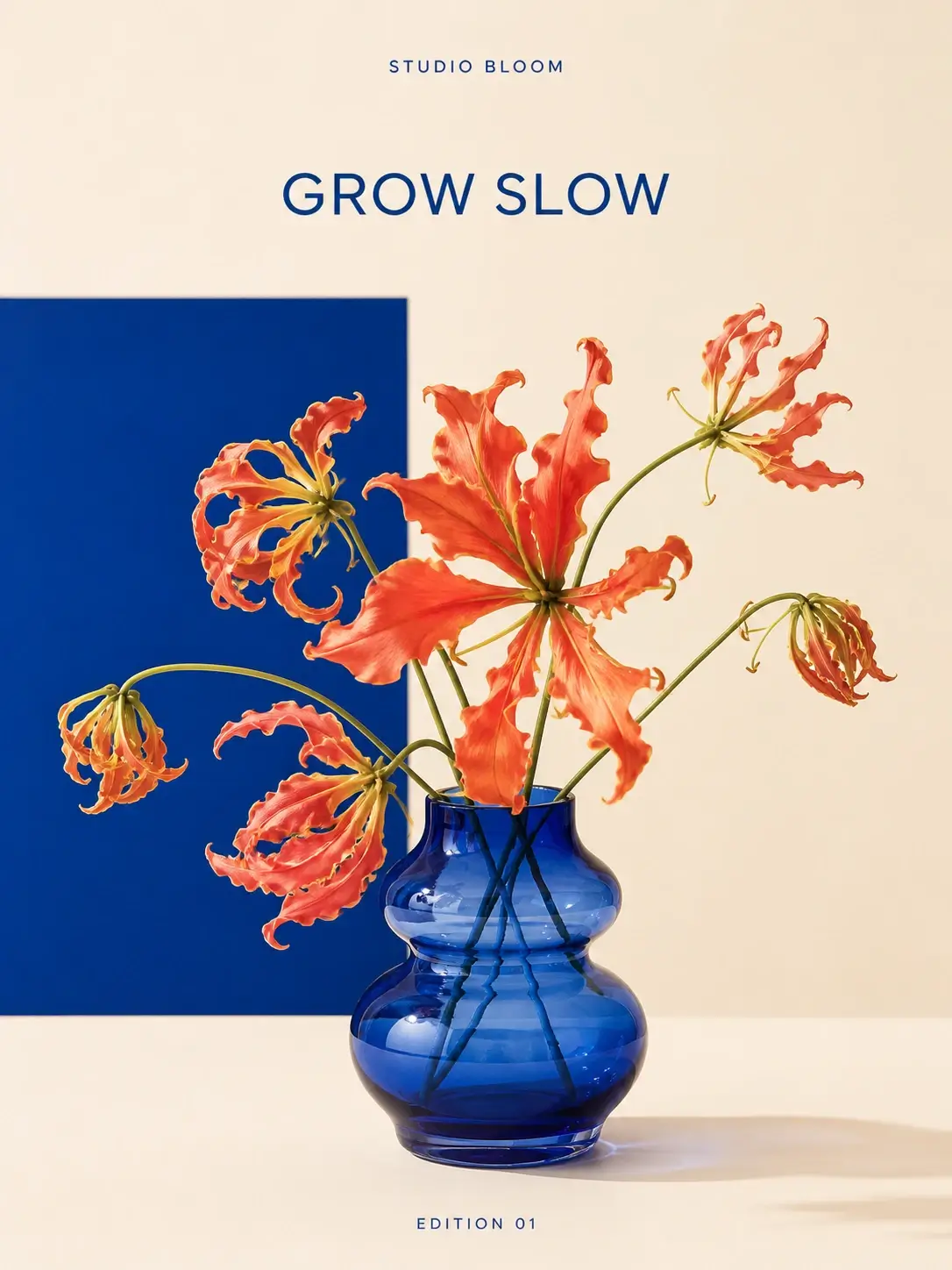
Useful for updating poster headings, product copy and short text in an image. Raster lettering is not an original editable text layer, so review typography, spacing and the reconstructed background.
Prepare and locate the action
Select the source image on your project canvas and find Edit text. If it is not visible, check More Tools and whether the asset type supports it. Keep the original and make sure you have permission to edit and use the source.
Step-by-step workflow
Open Edit Text on the selected image and wait for recognition. Choose the text to replace, enter the new wording and correct any recognition errors before submitting. Replacement text that is much longer or shorter may need rewriting to fit the original layout.
Example workflow
After replacing a date or heading on a poster, check each digit, punctuation mark and line break. A visually similar layout does not guarantee accurate wording.
Settings and costs
Use the options and estimated cost shown in the current tool interface. Check the result and actual records after processing. Source dimensions, model and output can affect cost; this guide does not promise a fixed price.
Troubleshooting and quality checks
Recognition and image generation can be separate steps, so reconcile their records independently after failures. Low resolution and stylized fonts can reduce recognition accuracy. Exact font reproduction is not guaranteed; a clearer source may help.
Public demonstration
These assets are from the public YourArt website demonstration. They illustrate the workflow; results depend on your input.