AI Image Extender: Expand an Image Beyond Its Borders
Expand an image beyond its original borders to adapt a composition for banners, posters and other formats.
Updated
On this page
When to use this tool
Use expansion when the subject is right but the canvas needs more space. It generates new content beyond the original border, unlike upscaling, cropping or stretching.
Prepare and locate the action
Select the source image on your project canvas and find Expand. If it is not visible, check More Tools and whether the asset type supports it. Keep the original and make sure you have permission to edit and use the source.
Step-by-step workflow
Adjust the target boundaries and composition, keeping the subject in the intended position. Choose a preset aspect ratio or drag the boundaries, review the estimated cost and submit. Inspect the seam, perspective and lighting in the completed result.
Example workflow
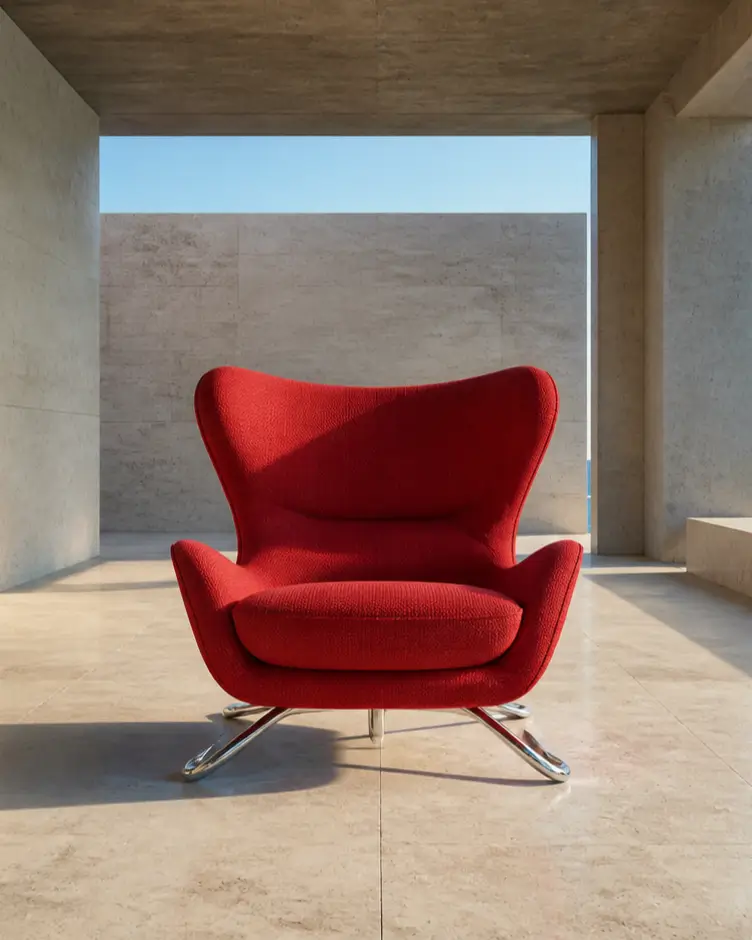
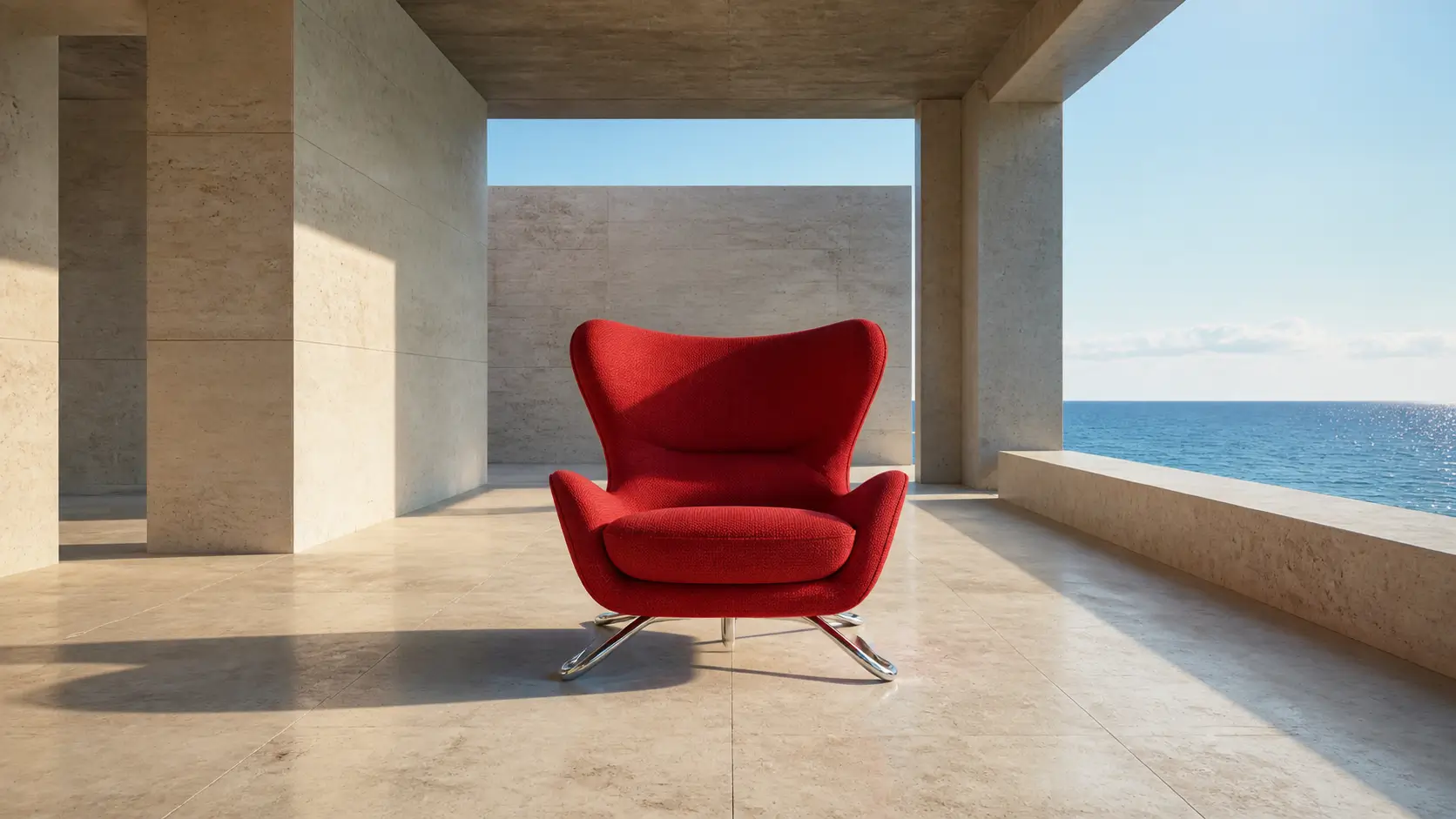
For a portrait-oriented lifestyle photo, extend the sides to leave space for a headline. Check that the target boundary leaves the intended space on each side, then generate and inspect the extended background.
Settings and costs
Use the options and estimated cost shown in the current tool interface. Check the result and actual records after processing. Source dimensions, model and output can affect cost; this guide does not promise a fixed price.
Troubleshooting and quality checks
New content may not match the real scene. If product edges, architectural lines or repeated patterns look wrong, expand a smaller region or try a different target composition.
Public demonstration
These assets are from the public YourArt website demonstration. They illustrate the workflow; results depend on your input.