BEYOND THE FRAME
AI Image Expander. A little more room for your image.
Keep the moment. Make room for more. Extend a portrait, give a product space to breathe, or turn a favorite photo into a new format with AI.
Explore the before & afterStart with your photo
or drop it here
JPG · PNG · WebP · up to 20 MB
Use the arrows or swipe to browse all 12 presets and the original ratio. Your selection carries into the canvas, where you can drag the edges to adjust the frame.
Sign in to upload. Generation uses credits; review the price in the canvas before running.
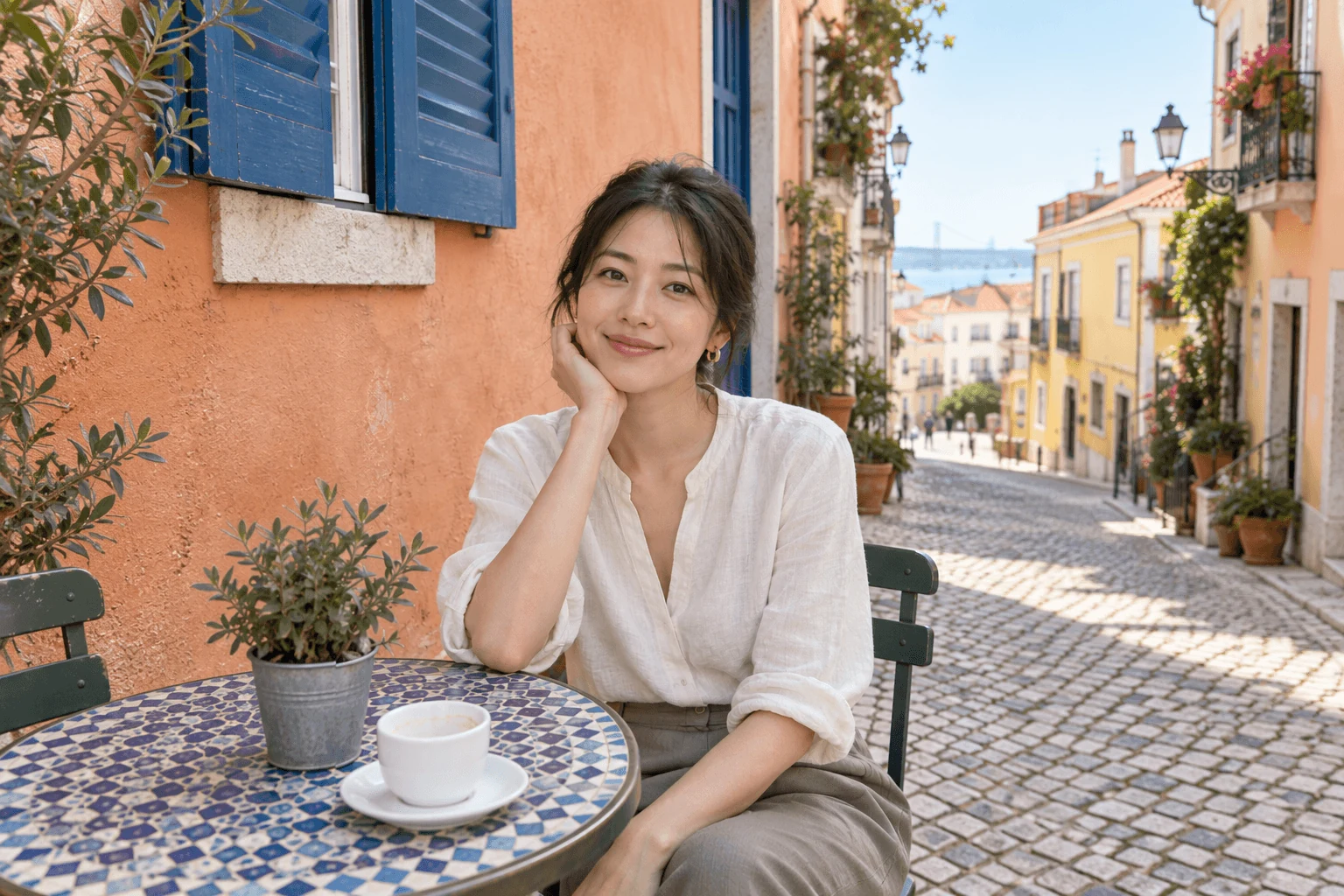
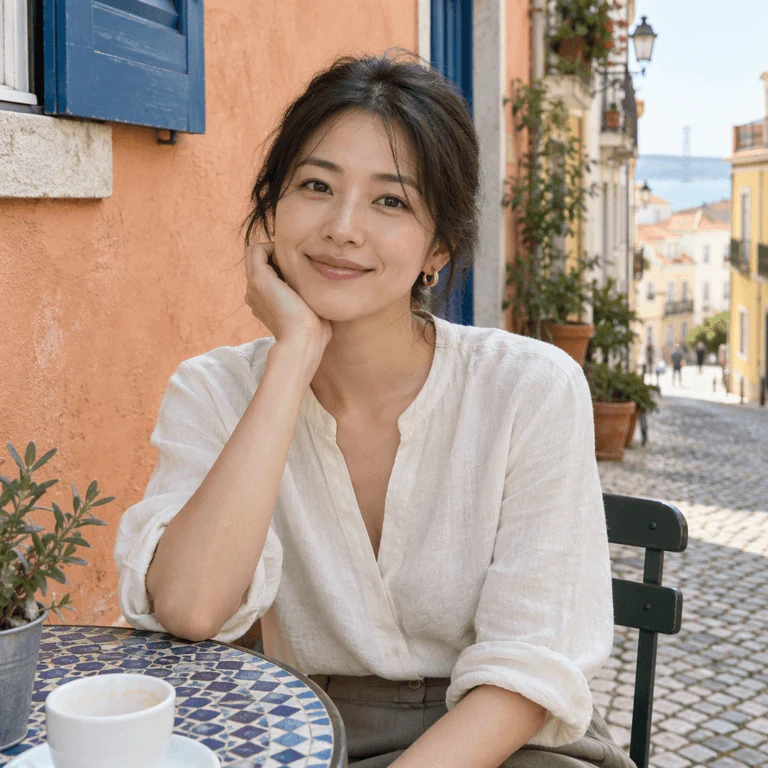
Same starting point. A bigger picture.
Move each slider to see the original frame and the AI-generated surroundings. More sky, more context, more room for your ideas.
01 768 × 768 → 1536 × 1024
A portrait with room to breathe
A tight portrait becomes a wider scene for a profile, editorial layout or team page. Extend the wall and surroundings while keeping the person at the heart of the composition.
Expand your image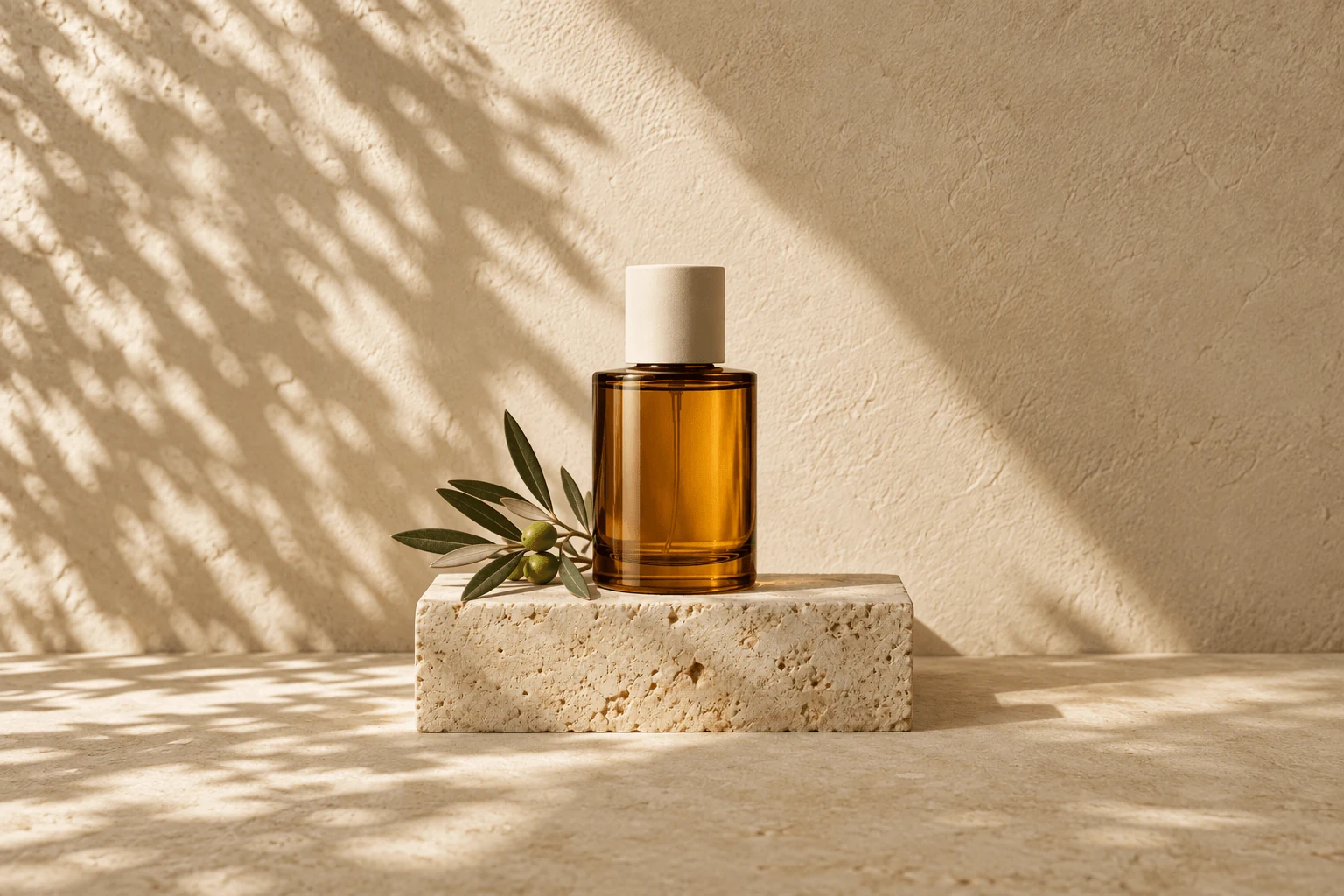
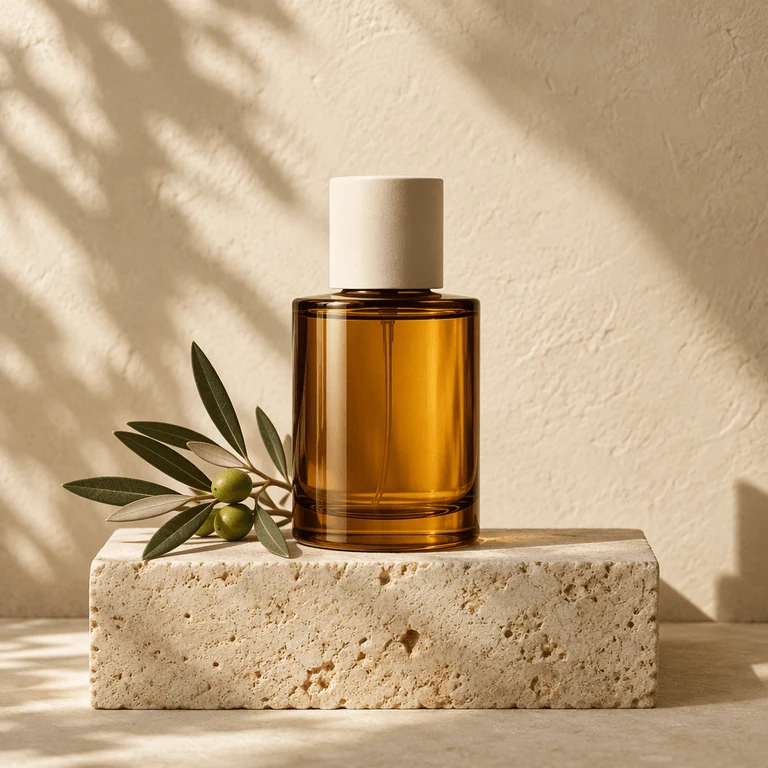
02 768 × 768 → 1536 × 1024
Space for your next product story
Give a product photograph a larger backdrop for a listing or campaign. Leave room for your own headline without shrinking the product into a corner.
Expand your image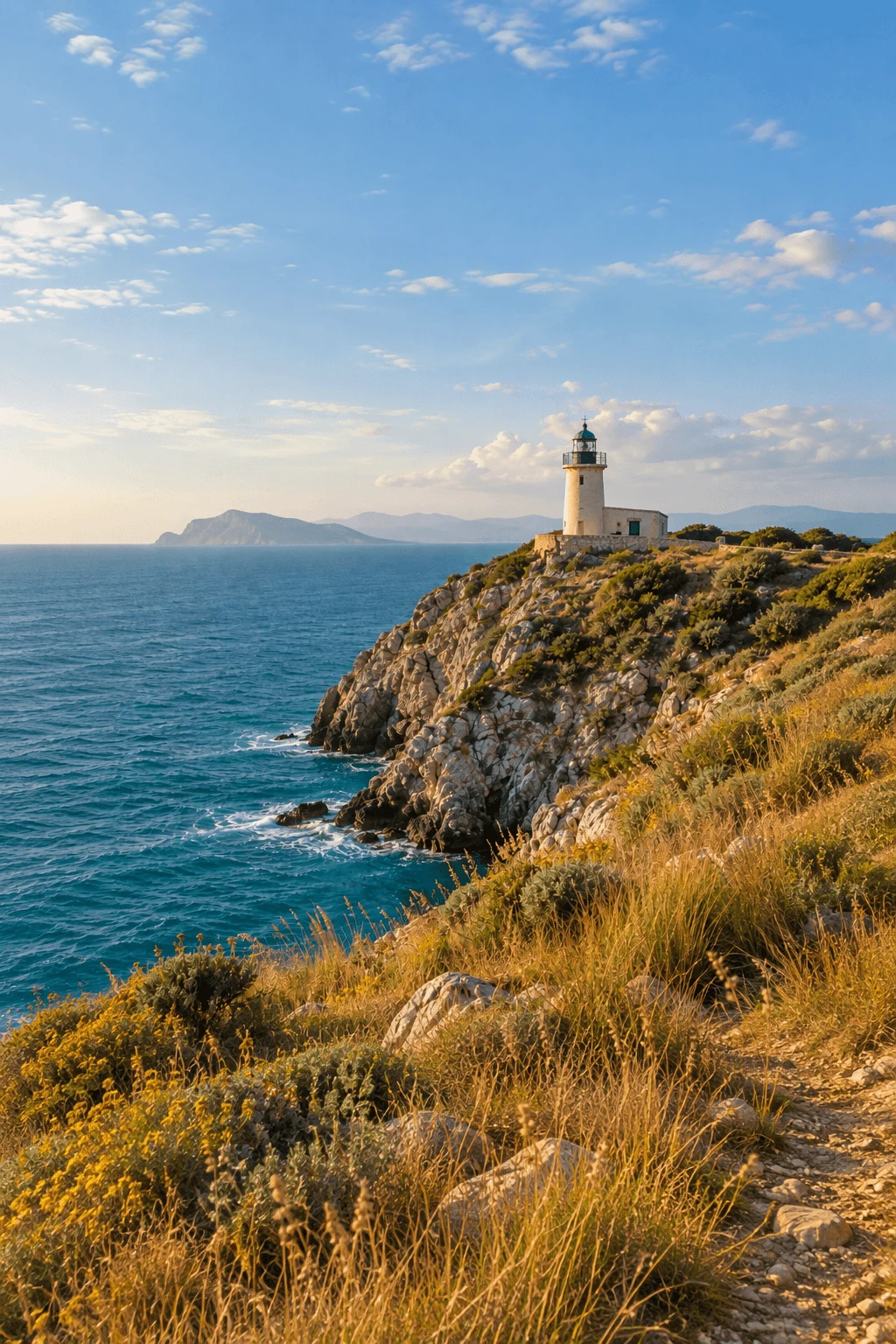
03 768 × 768 → 1024 × 1536
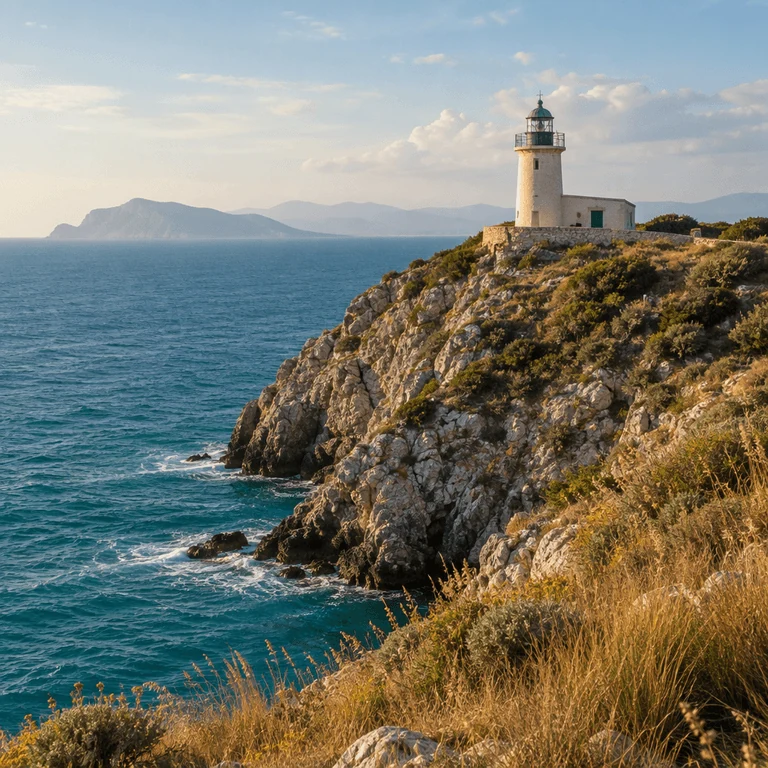
One scene, a new perspective
Turn a square travel shot into a taller composition. Outpainting can add sky and foreground for a story, cover or mobile layout without stretching the lighthouse.
Expand your image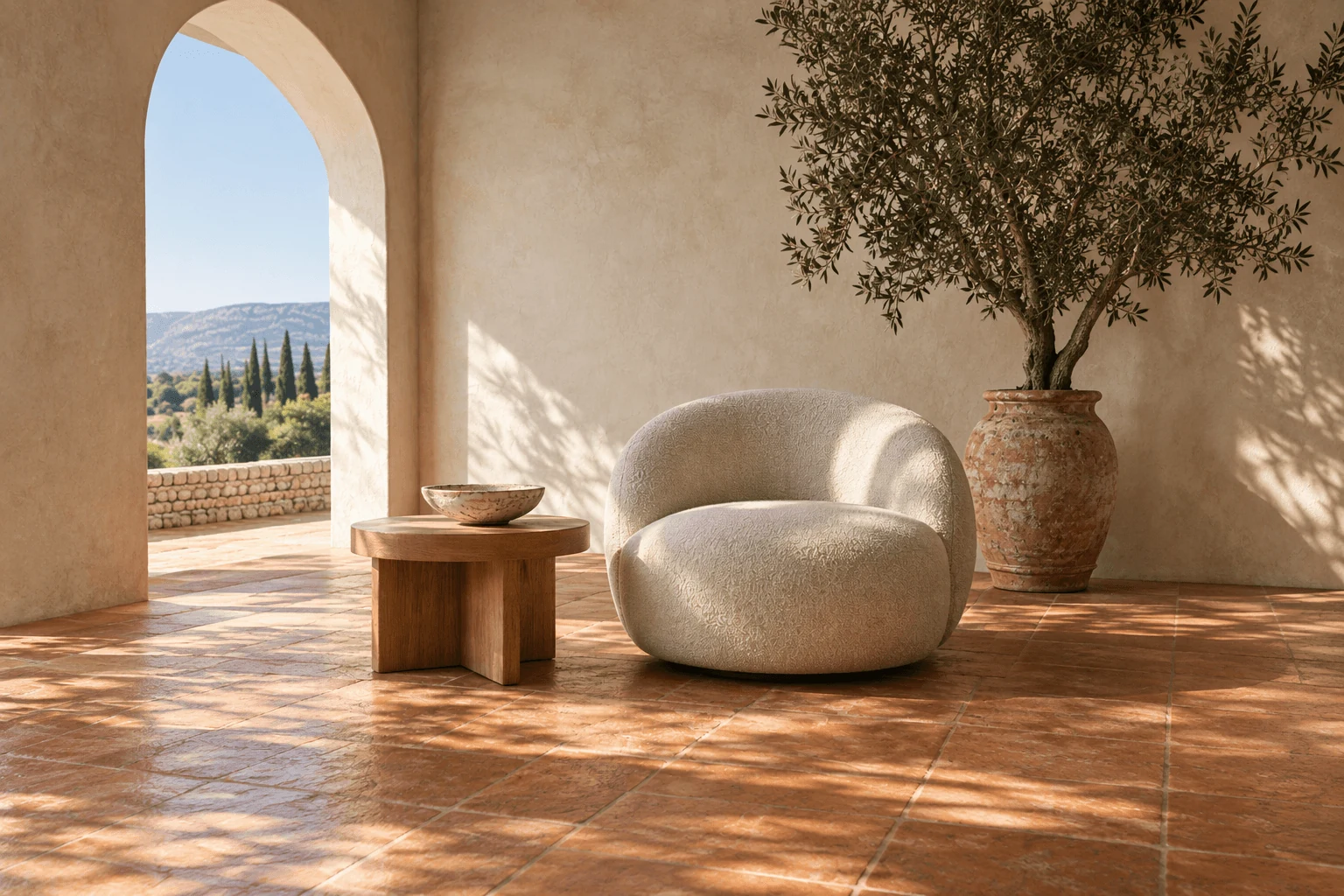
04 768 × 768 → 1536 × 1024
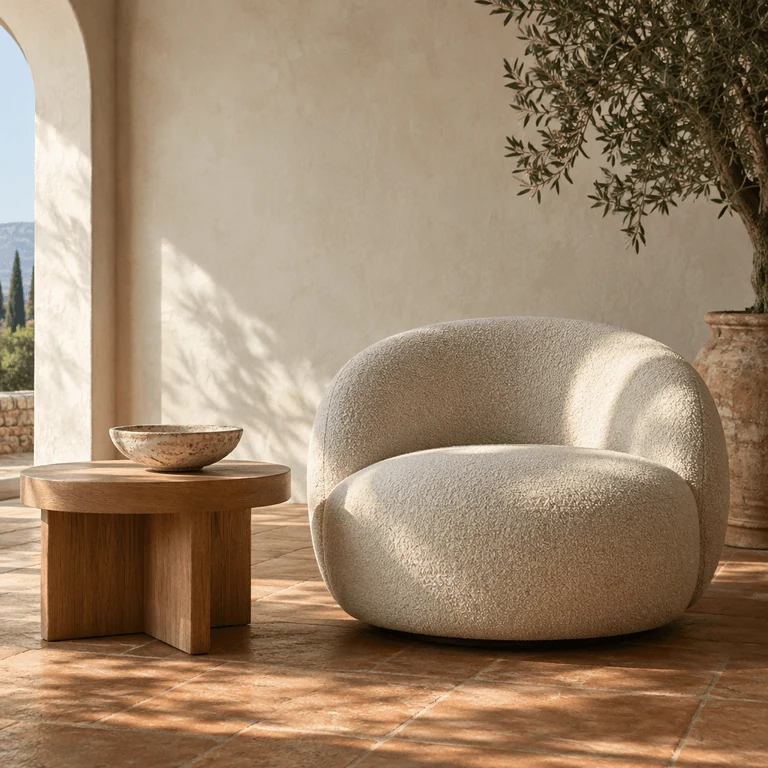
Uncrop the feeling of a room
Open up a closely framed interior with more floor, wall and light. AI uncropping imagines plausible surroundings; it cannot restore the exact details a past crop removed.
Expand your imageIllustrative examples: AI-generated source images, then expanded with GPT Image 2.5 via Flat AIGC. YourArt’s canvas expander uses its own generation workflow; results vary by image. Added areas are imagined, not recovered from an original photograph.
What is an AI image expander?
An AI image expander, also called an AI image extender, generates new picture content outside an image’s borders. When a photo feels too tightly framed or has the wrong shape for a layout, it creates more scene around it: sky above a landscape, wall beside a portrait, or a surface beneath a product.
The technique is called outpainting or generative expand. Instead of cropping away the subject or stretching its proportions, AI continues nearby colors, lighting, textures and perspective. You choose the frame; the model imagines how the scene might continue.
Uncrop describes the same idea when your starting image has already been cropped. The new edges are a plausible interpretation, not a recovery of the lost original. Review faces, objects and transitions before you publish; generated output may also change details inside the source area.
How to expand an image in three steps
- 01
Upload your photo
Choose a JPG, PNG or WebP up to 20 MB and sign in. Your image opens in a new YourArt canvas with the expand tool ready.
- 02
Choose the new shape
Use the arrows or swipe through the ratio list to choose an original, square, portrait, landscape or banner frame. In the canvas, drag the edges to adjust the expansion and check the displayed output dimensions.
- 03
Generate, review and download
Review the credit price, generate the expansion, and inspect the new edges. Download the completed image from your canvas when it looks right.
A bigger frame. A familiar workflow.
Expand instead of stretching
Create new surroundings instead of pulling faces, products and straight lines out of proportion.
Choose where the space goes
Use a ratio preset or drag individual edges to give the composition the space it needs.
See the price before you generate
The canvas shows the credit cost before submission. Check your balance and pricing before starting.
Keep working in one canvas
Compare your source and result, then crop, edit or upscale as part of the same project.
Download without a YourArt watermark
Save the completed image from the canvas. Check the output at full size before using it in a design.
Your projects, ready to revisit
Work is saved to your account so you can return to it. See our privacy policy for storage and data handling details.
Get a cleaner expansion
Keep the subject inside the frame
A complete face or product gives the model less to invent. If a shoulder or object is cut off, inspect the reconstructed area carefully.
Start with a continuous background
Sky, water, plaster and studio backdrops are good starting points. Crowds, lettering and repeating architecture need closer review.
Give the extra space a purpose
Go wider for a headline or a banner. Go taller for sky, foreground and stories. Avoid adding space your composition does not need.
Small source? Improve it first
Expansion does not automatically sharpen a low-resolution original. Consider upscaling first, then check whether the added detail looks natural.
Image Upscaler ↗Outpaint vs. crop vs. resize
| Method | What happens | When to use it |
|---|---|---|
| Crop | Removes parts of the image to fit a new frame. | The important subject already fits inside the target shape. |
| Resize / stretch | Resizing scales existing content. Stretching to a different ratio distorts proportions. | You need different pixel dimensions with the same composition and aspect ratio. |
| Outpaint / expand | Generates new scene content around the original frame. | You need a different shape or more background without cropping the subject. |
A little more clarity
Is this AI image extender free?
You can explore the examples on this page for free. Uploading and generating require an account, and expansion consumes credits. Review the current price in the canvas before submitting; this is not an unlimited free generator.
Can I expand an image without signing up?
You can view and compare the examples without signing in. To upload your own photo, create a project and generate an expanded image, sign in to YourArt.
Are there restrictions on how much I can expand?
Yes. The current expand tool limits the requested canvas to 5,000 pixels per side. Custom output ratios must be between 0.5 and 3.0. Source dimensions and the selected expansion affect what fits; the canvas warns when a request exceeds its limits.
Does expanding an image reduce quality?
Outpainting adds generated content rather than simply stretching the source. Fine details can still change, and a small source does not gain true detail automatically. Inspect the full-size result and consider upscaling a low-resolution source first.
Can I expand a photo without stretching it?
Yes. Choose a wider or taller frame and AI generates the extra surroundings. This is designed to preserve the subject’s proportions rather than stretch the entire image to fill a new ratio.
What aspect ratios and pixel sizes can I use?
Choose the original ratio or any of 12 presets: 1:1, 3:4, 2:3, 9:16, 4:3, 3:2, 16:9, 4:5, 5:4, 1.91:1, 2:1 and 3:1. Your choice carries into the canvas, where draggable edges let you adjust the frame and see requested dimensions before generation. Final file dimensions depend on the generation service; exact arbitrary export sizes are not promised.
Does it work for portraits and faces?
It can extend a portrait’s background and imagine clothing or surroundings beyond the frame. Keep the face fully visible where possible and review identity, anatomy and clothing in the result. Reconstructed details are not guaranteed to match reality.
Can I use expanded images commercially?
Check YourArt’s current terms and any applicable model terms before commercial use. You must have the rights to your source image and consider trademarks, identifiable people and other third-party rights. AI generation does not itself clear those rights.
Does it work on mobile?
YourArt runs in the browser and this page supports mobile uploads. Detailed canvas adjustments are easier on a larger screen; you do not need to install an app.
Is there an API for outpainting?
This page opens the YourArt canvas workflow. See the Docs Center for currently documented API and CLI capabilities. A dedicated public outpainting endpoint or batch expansion API is not promised by this page.
Your photo has more to say.
Give it a frame that fits the story.
Expand your image ↗